Get a clean image at the scale house
A readable image produces better text recognition and is easier to review months later. Flatten folded paper, use even light, keep the entire ticket inside the frame, and avoid a shadow from your hand or phone. If the receipt is long or printed on both sides, add multiple pages to the same sale.
Do not photograph while driving, walking through equipment traffic, or standing where the yard prohibits phone use. Move to a safe location first.
Scan or import the receipt
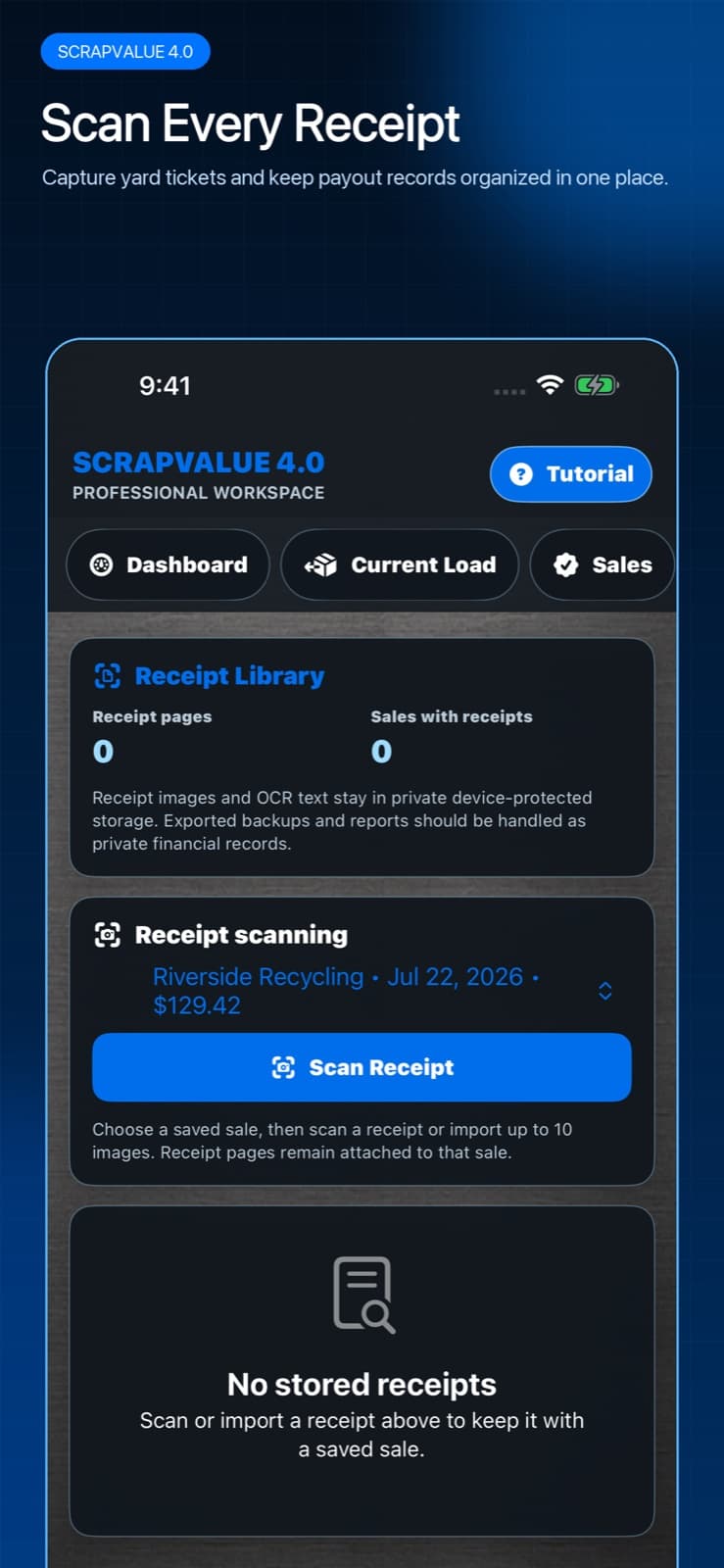
Receipt scanning is a Pro feature and begins from the Receipt Library.
- Save or open the completed sale that should own the receipt.
- Open the Receipt Library and select that sale in the Receipt scanning panel.
- Tap Scan Receipt to use the camera, or import an existing receipt image from your photo library when available.
- Capture every page needed to understand the ticket, up to the app's current per-sale page limit.
- Review the original image, rotate or retake an unreadable page, and confirm the recognized text.
- Correct the yard, date, ticket number, material lines, weights, deductions, and payout when OCR guessed incorrectly.
- Save the reviewed details so the receipt remains attached to the sale.
OCR helps with entry; it does not replace review
Scale tickets use different layouts, abbreviations, dot-matrix printers, handwritten notes, faint ink, and tightly packed columns. On-device recognition can reduce typing, but it cannot know with certainty whether a number is gross weight, tare, net, unit price, a ticket identifier, or the final payout.
Compare every important number with the original image. The most useful record is not the one with the most recognized text—it is the one whose material, weight, and money fields you verified.
Use consistent names so search works later
Use the yard's recognizable name, keep ticket numbers exact, and write short notes for unusual deductions or grading changes. A consistent record makes it easy to search all sales from one yard, filter for receipts, or find a ticket when you only remember a material or date range.
- Use the actual transaction date rather than the day you scanned the paper.
- Enter the actual payout exactly as shown, including cents.
- Preserve the original image even after correcting OCR fields.
- Export required business or tax records to your own long-term recordkeeping system.